The storage performance options in Harvester get the same layout as in Rancher
The storage performance options for virtual machine disks are in two places: the Harvester VM and Volume forms, and the Rancher form for Harvester machine pools. The Rancher version went through a design review and came out simpler, so the same settings now look different in the two places. This change makes Harvester match the Rancher layout and wording. What the options do stays the same. We haven't built the Harvester version yet, so the right-hand pictures show the Rancher form as the target.
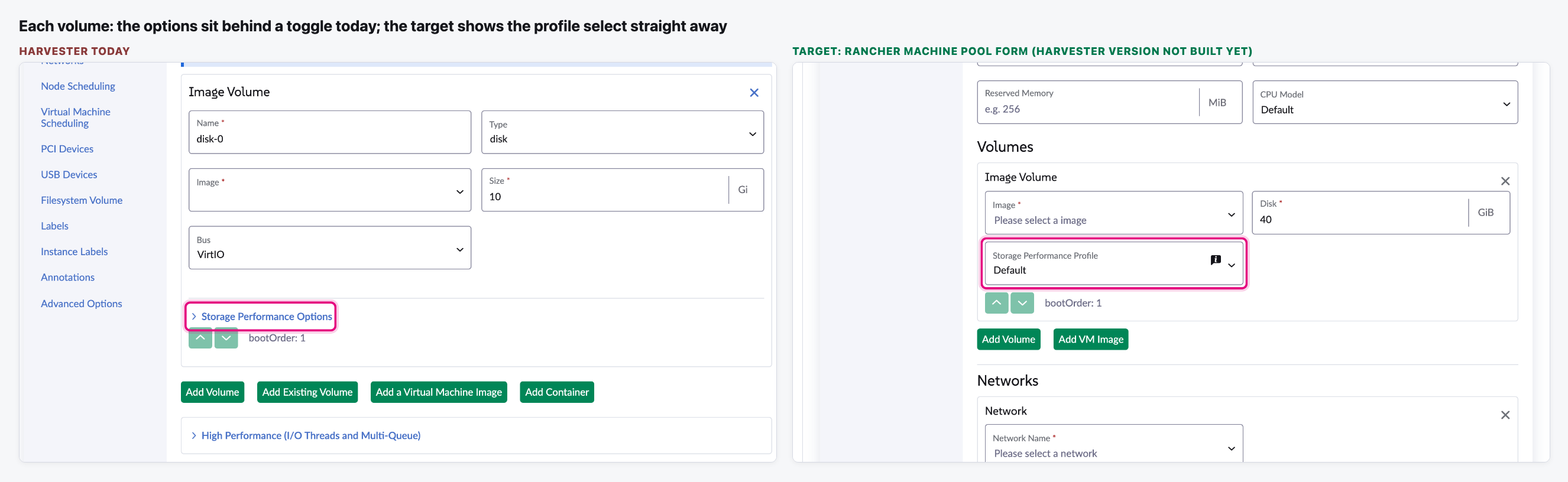
- Every volume shows a "Storage Performance Profile" field. You no longer open a "Storage Performance Options" toggle first. Cache mode, I/O mode and the dedicated I/O thread still only appear when you pick Custom.
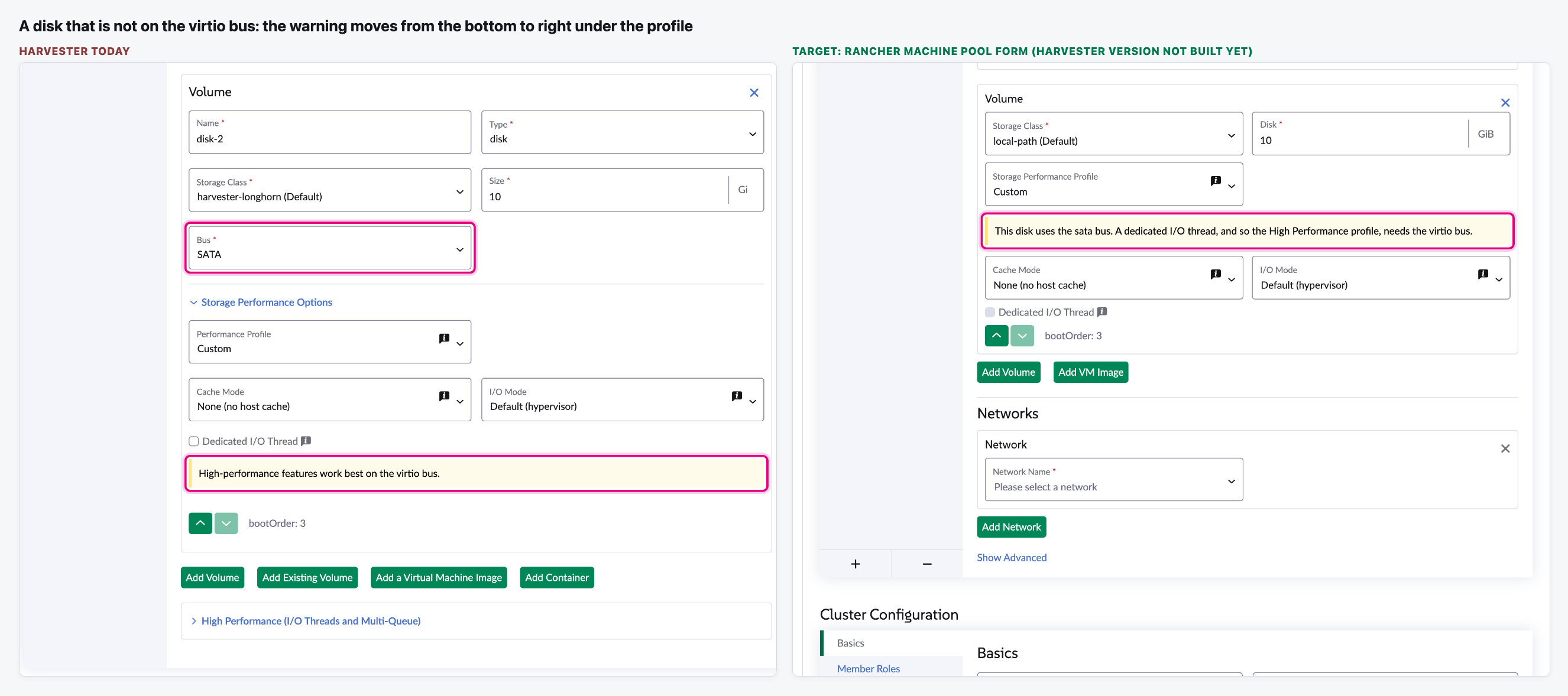
- The warning for a disk that isn't on the virtio bus moves up, right under the profile, so you see it while you choose.
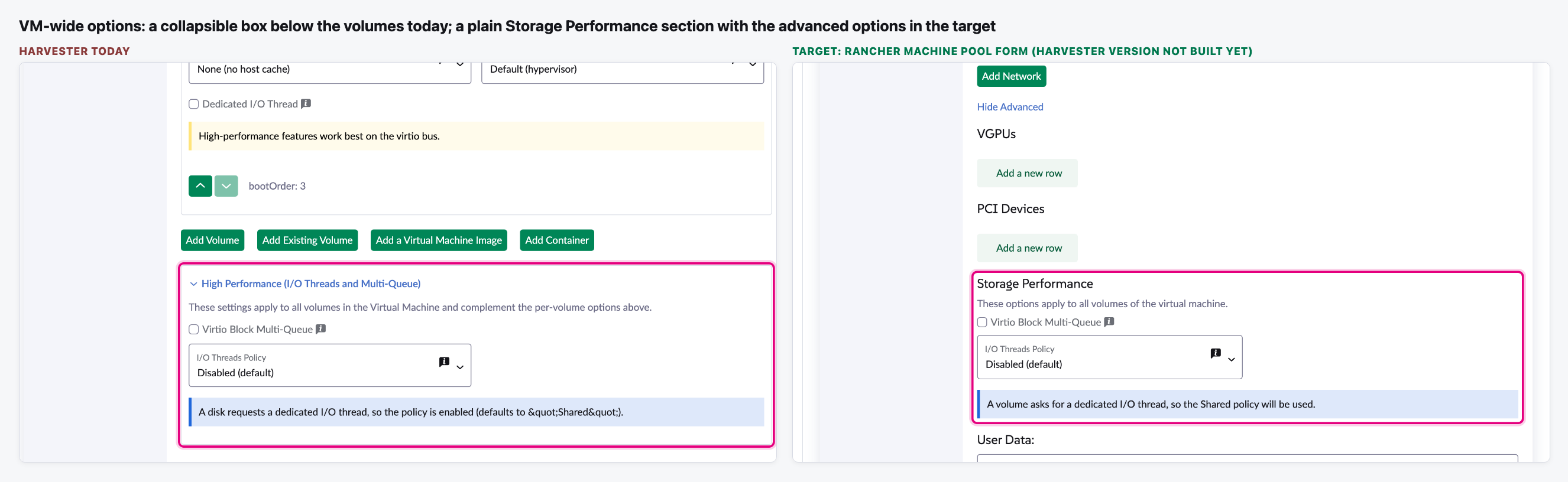
- The options for the whole VM (multi-queue and I/O threads) move out of a collapsible box under the volumes. They go into a plain "Storage Performance" section on the Advanced Options tab.
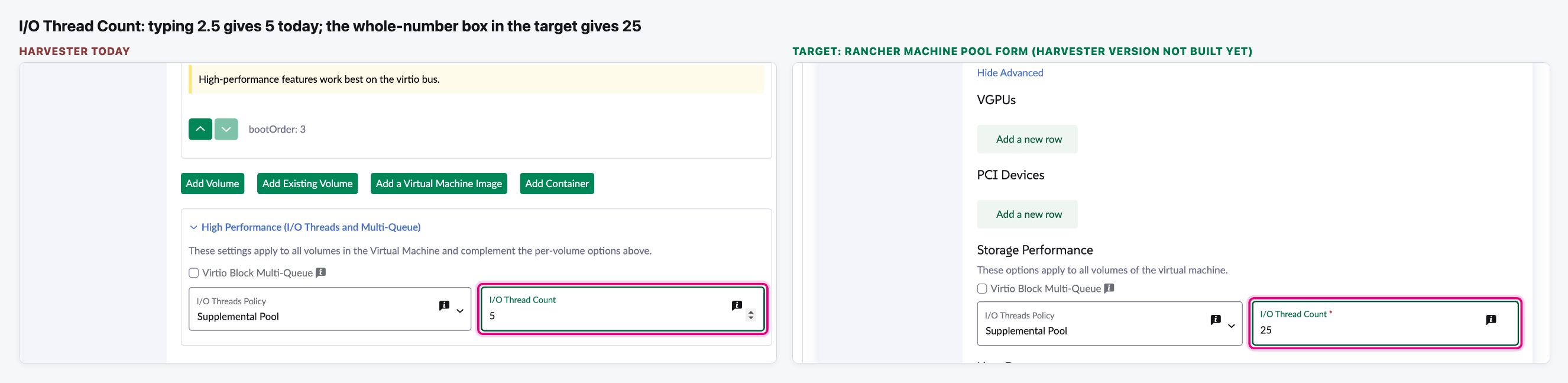
- Labels and tips get the shorter Rancher wording ("Default (Balanced)" becomes "Default"), and the I/O thread count only accepts whole numbers.
- Nothing changes in what gets saved or in how the options behave.
- Where the whole-VM options go. Advanced Options is our proposal, carried over from the Rancher design review. Harvester's designers haven't agreed to it yet, and when the feature was first built (issue 11550), the Harvester side chose the box under the volumes.
- Which release gets the change. The issue's milestone is still "Planning", so the docs team doesn't know yet which version to write for.
The flow
A volume, before you touch the options
Today you have to open a toggle to see the options. The target shows the profile straight away.
Picking High Performance
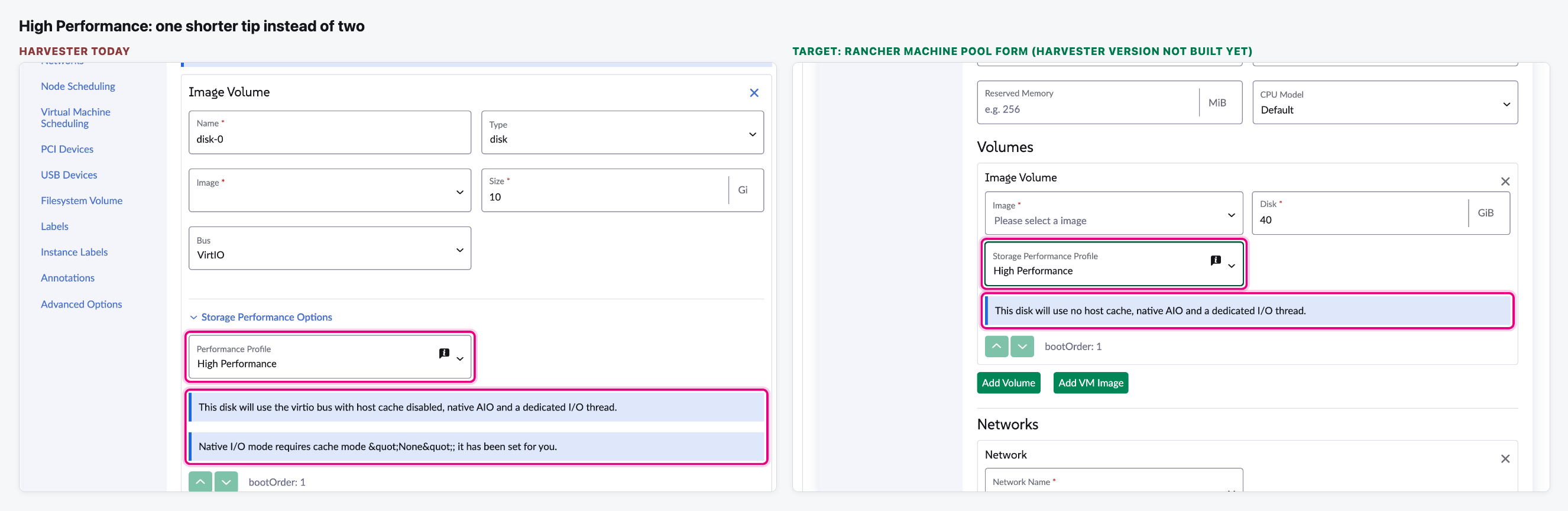
Today two tips appear. In the target there is one shorter tip.
Custom: setting each option yourself
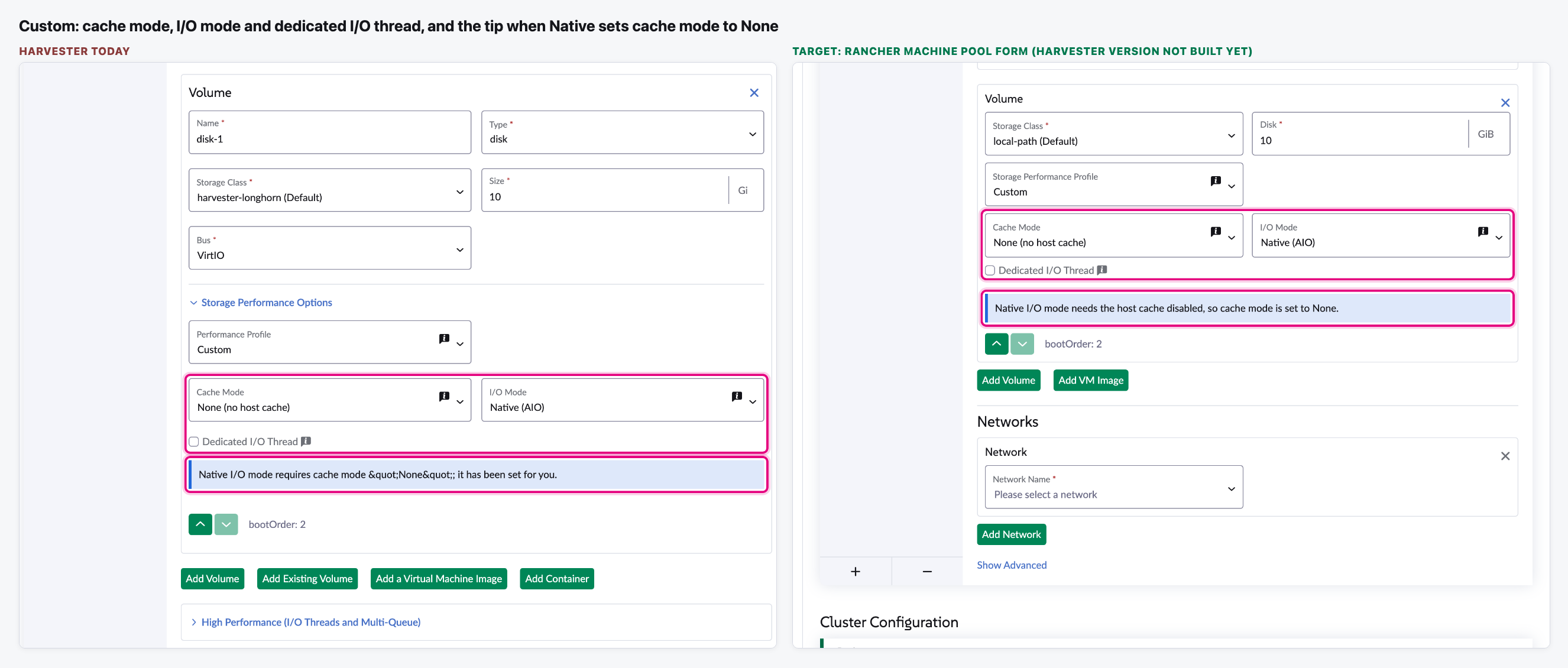
The same three fields in both. Picking Native still sets the cache mode to None, with a plainer tip.
A disk that isn't on the virtio bus
The warning moves from the bottom of the volume to right under the profile.
The options for the whole VM
Today: a collapsible box under all the volumes. Target: a plain "Storage Performance" section with the other advanced settings.
Typing the I/O thread count
We typed "2.5" in both. Today the box ends up showing 5. The target ignores the decimal point and shows 25.
Reference for the docs update
The require/doc label is on the issue, so this part is detailed and meant for the docs writers. "Today" is harvester-ui-extension main as of 28 October 2026. It is the same UI as v1.9.1, where the feature first ships (backport PR 1191). "After" is what the issue asks for, with the exact text taken from the Rancher form. Anything the issue leaves open is marked as such.
A. Where each option lives
| Form | Today | After this change |
|---|---|---|
| Create / Edit Config a VM, per disk Virtual Machines → Create, or ⋮ → Edit Config |
Volumes tab, inside each disk box (image, new, existing and container volumes; not CD-ROM), below Bus. A link-style toggle Storage Performance Options opens Performance Profile. It is collapsed unless the disk already has an option set. Cache Mode, I/O Mode and Dedicated I/O Thread appear only for Custom. All tips and warnings sit at the bottom of the section. | Same tab and disk box, but no toggle and no divider line. Storage Performance Profile is always shown (still not on CD-ROM). Under it: the High Performance tip and the bus warning. Then the three Custom fields, then the Native tip. |
| Create / Edit Config a VM, VM-wide | Volumes tab, a box below the Add Volume buttons, titled High Performance (I/O Threads and Multi-Queue). It is collapsed unless the VM already has multi-queue or a policy set. Inside: description, Virtio Block Multi-Queue, I/O Threads Policy, and I/O Thread Count (only for Supplemental Pool). | Advanced Options tab, a Storage Performance heading with a one-line description and the same three fields, always shown (no toggle). Where it goes within that tab (today: Run Strategy, Maintenance Strategy, Reserved Memory, Cloud Configuration, …) isn't set yet. In Rancher it comes after vGPUs and PCI Devices and before User Data. |
| VM template Templates → Create, or a new template version |
Same as the VM form. We checked: both the per-disk toggle and the VM-wide box are on its Volumes tab. | Same as the VM form. The template form also has an Advanced Options tab. The current docs don't mention templates. |
| VM details page (view only) | From the code: each disk on the Volumes tab shows its profile and the three fields, with no toggle. The VM-wide box shows only when the VM uses one of those options. (We didn't open a details page for this.) | The issue doesn't cover the view page. It should follow the edit form (VM-wide options with the advanced settings). To be settled in the PR. |
| Volume create (standalone) Volumes → Create |
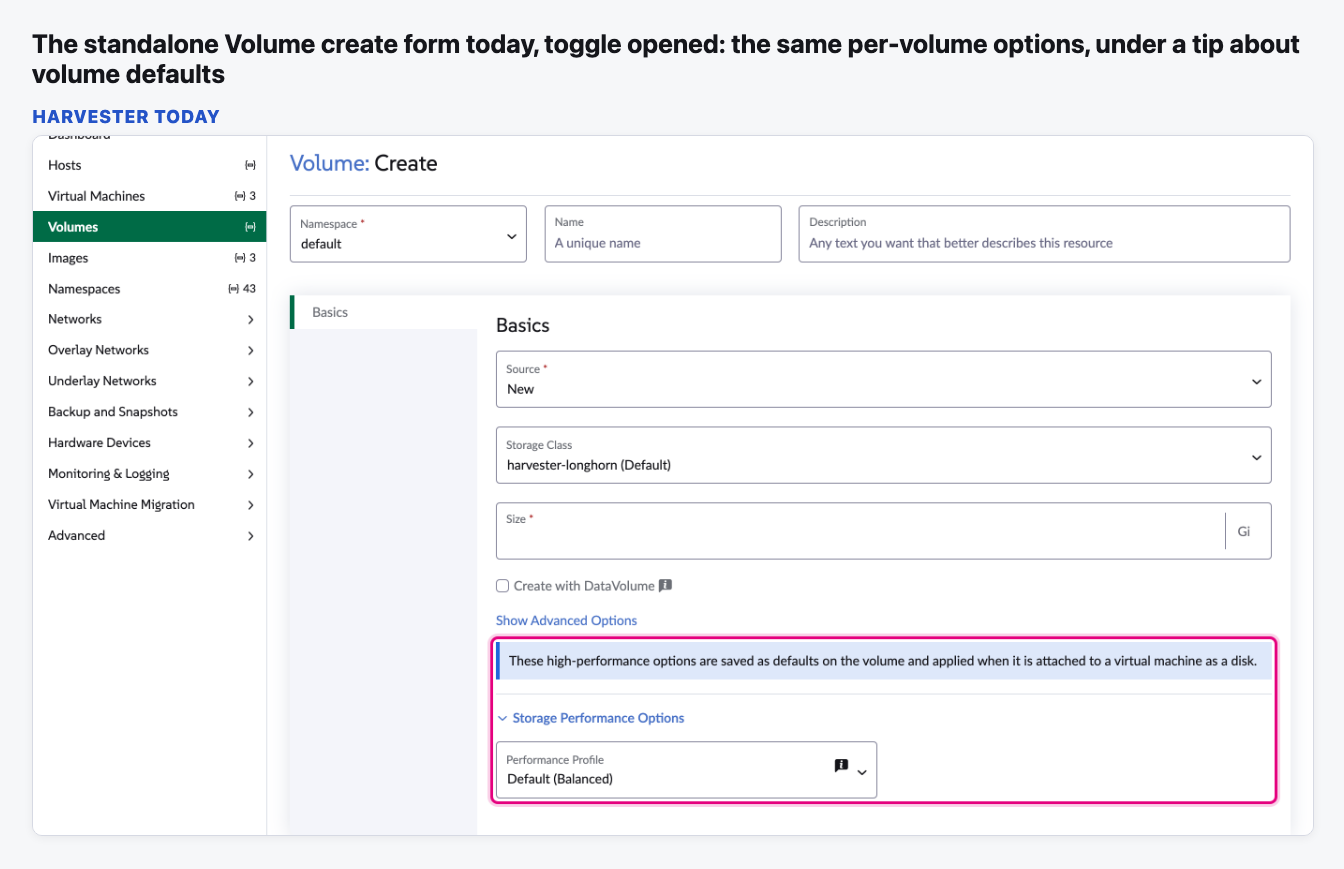
Basics tab (the only tab), after Show Advanced Options (which is about access and volume mode, a different thing). A blue tip says the options are saved as defaults on the volume, then the same Storage Performance Options toggle, collapsed. See the picture below. | The same tip stays. Storage Performance Profile is shown directly, with the same behaviour as in a VM disk. The standalone Volume form has no VM-wide options. |
| Inside Rancher (Virtualization Management) | The same Harvester forms as in standalone, shown when the Harvester cluster is v1.9.1 or later. | Same as standalone. (Rancher's own machine pool form is the target layout and is not part of this change. It ships in Rancher 2.16.0.) |
B. Every visible string that changes
Old strings are from harvester-ui-extension pkg/harvester/l10n/en-us.yaml on main (harvester.virtualMachine.volume.performance.*, …diskPerformance.*, harvester.volume.performance.*). New strings are from the issue and rancher/dashboard master shell/assets/translations/en-us.yaml (cluster.credential.harvester.storageOptions.* / vmStorageOptions.*). Harvester only marks text that has no Rancher version or keeps a Harvester-only detail. Open marks text the issue leaves to the PR. English is the only locale with these keys.
| What | Today | After |
|---|---|---|
| Per volume (VM, template and Volume forms) | ||
| Section toggle | Storage Performance Options | Removed (no toggle) |
| Toggle screen-reader labels | Show high-performance options / Hide high-performance options | Removed |
| Profile field label | Performance Profile | Storage Performance Profile |
| Profile field tip (ⓘ) | "High Performance" applies a tuned preset (no host cache, native AIO, a dedicated I/O thread on the virtio bus). Choose "Custom" to set each option yourself. | Rancher: "High Performance" disables the host cache, uses native AIO and gives the disk a dedicated I/O thread. Choose "Custom" to set each option yourself. Open Harvester should keep the virtio bus here, because only Harvester switches the bus. The exact wording is for the PR. |
| Profile option | Default (Balanced) | Default |
| Profile options | High Performance · Custom | Unchanged |
| High Performance tip (blue) | This disk will use the virtio bus with host cache disabled, native AIO and a dedicated I/O thread. | Rancher: This disk will use no host cache, native AIO and a dedicated I/O thread. Harvester only The issue keeps the virtio bus in this tip (its own example), e.g. "…will use the virtio bus, no host cache, native AIO and a dedicated I/O thread." Open exact wording. |
| Cache Mode label / options | Cache Mode · Default (hypervisor) · None (no host cache) · WriteBack · WriteThrough | Unchanged |
| Cache Mode tip (ⓘ) | How the host caches disk I/O. "None" (host cache disabled) is best for high-throughput guests on block storage; "WriteBack" favours performance; "WriteThrough" favours durability. | How the host caches disk I/O. "None" is best for high-throughput guests on block storage, "WriteBack" favors performance and "WriteThrough" favors durability. (Shared string: the issue says to use the Rancher wording.) |
| Filesystem warning (yellow, cache None on a Filesystem volume) | "None" (O_DIRECT) requires storage that supports direct I/O. It is recommended only for Block volume mode; on Filesystem volumes the VM may fail to start. | Harvester only Unchanged. Rancher has no such warning. |
| I/O Mode label / options | I/O Mode · Default (hypervisor) · Native (AIO) · Threads | Unchanged |
| I/O Mode tip (ⓘ) | How QEMU submits I/O. "Native" (Linux AIO) offers the lowest overhead but requires host cache set to "None"; "Threads" uses a host thread pool. | How QEMU submits I/O. "Native" (Linux AIO) has the lowest overhead and needs cache mode "None". "Threads" uses a host thread pool. (Shared string.) |
| Native tip (blue) | Native I/O mode requires cache mode "None"; it has been set for you. On screen today: "None". | Native I/O mode needs the host cache disabled, so cache mode is set to None. Announced to screen readers. In Rancher it shows only under Custom. Today Harvester also shows it under High Performance (step 2). Open whether that stays. |
| Dedicated I/O Thread label | Dedicated I/O Thread | Unchanged |
| Dedicated I/O Thread tip (ⓘ) | Allocate an exclusive libvirt I/O thread to this disk instead of sharing one. Useful for disks with heavy I/O. Enabling this on any disk turns on the VM's I/O threads policy. | Give this disk its own I/O thread instead of sharing one. Useful for disks with heavy I/O. The sentence about the I/O threads policy goes. The docs already explain it. |
| Bus warning (yellow) | High-performance features work best on the virtio bus. At the bottom of the section. | Moves right under the profile. Open wording. The issue only moves it. Rancher's text ("This disk uses the {bus} bus. A dedicated I/O thread, and so the High Performance profile, needs the virtio bus.") describes Rancher's rule, where High Performance is disabled off virtio. Harvester switches the bus instead, so that sentence can't be copied as it is. |
| Volume form tip (blue) | These high-performance options are saved as defaults on the volume and applied when it is attached to a virtual machine as a disk. | Harvester only Unchanged |
| VM-wide (VM and template forms) | ||
| Box title → section heading | High Performance (I/O Threads and Multi-Queue) | Storage Performance |
| Toggle screen-reader labels | Show VM-wide high-performance options / Hide VM-wide high-performance options | Removed |
| Description | These settings apply to all volumes in the Virtual Machine and complement the per-volume options above. | These options apply to all volumes of the virtual machine. |
| Virtio Block Multi-Queue label | Virtio Block Multi-Queue | Unchanged |
| Virtio Block Multi-Queue tip (ⓘ) | Map disk I/O to multiple queues so it is processed across multiple CPUs. Applies to virtio disks and requires a fixed CPU allocation (Harvester always sets one). "Harvester" reads "SUSE Virtualization" on Prime. | Spread disk I/O over one queue per vCPU so that it is processed on multiple CPUs. |
| No-virtio tip (blue) | Add at least one disk on the virtio bus to enable Block Multi-Queue. | Harvester only Unchanged |
| I/O Threads Policy label / options | I/O Threads Policy · Disabled (default) · Shared · Auto · Supplemental Pool | Unchanged |
| I/O Threads Policy tip (ⓘ) | How libvirt allocates I/O threads. "Shared" uses one thread for all disks; "Auto" pools threads round-robin (up to ~2x vCPUs); "Supplemental Pool" lets you pick a fixed thread count and adds matching CPUs to the pod. | "Shared" uses one I/O thread for all disks. "Auto" spreads disks over a pool of threads. "Supplemental Pool" uses a fixed number of threads. |
| Policy turned on by a disk (blue) | A disk requests a dedicated I/O thread, so the policy is enabled (defaults to "Shared"). On screen today: "Shared". | A volume asks for a dedicated I/O thread, so the Shared policy will be used. |
| I/O Thread Count label | I/O Thread Count | Unchanged |
| I/O Thread Count tip (ⓘ) | Number of I/O threads for the supplemental pool. 4-8 is a common range depending on workload. | Number of I/O threads in the supplemental pool. |
| I/O Thread Count input | Number box (accepts typing a decimal or a minus sign) | Whole-number box. Rancher also marks it required and has the message "I/O Thread Count must be at least 1 with the "Supplemental Pool" policy." The issue doesn't ask for those. Today Harvester saves an empty or 0 count as 1. |
C. What stays the same
- High Performance still sets cache mode None, I/O mode Native and a dedicated I/O thread, and switches the disk's bus to virtio. Going back to Default clears the three options and puts back the bus the disk had before, unless you changed the bus yourself in between. Custom keeps whatever is set, bus included.
- Picking Native I/O mode sets cache mode to None and greys out the other cache modes, including Default.
- The yellow Filesystem warning still appears when cache mode is None on a Filesystem volume.
- Virtio Block Multi-Queue is still disabled when no disk is on virtio, with the blue tip. If you remove the last virtio disk while it is ticked, it is cleared.
- A disk with a dedicated I/O thread and no policy chosen still saves the Shared policy. Supplemental Pool still starts at a count of 2.
- The options are still hidden on CD-ROM disks. The dedicated I/O thread checkbox stays usable on any bus in Harvester (Rancher greys it out off virtio; that difference stays).
- The feature gate
highPerformanceStorageis unchanged. The options show on Harvester v1.9.1 and later (v1.10 included) and stay hidden on older versions, standalone and inside Rancher. - Saved values are unchanged: on the VM,
disks[].cache,io,dedicatedIOThread,disk.bus,domain.ioThreadsPolicy,domain.ioThreads.supplementalPoolThreadCountanddevices.blockMultiQueue. On a standalone volume, the same three per-disk defaults are stored as annotations. The API tabs and YAML examples in the docs stay correct. - Restart behaviour is unchanged: the options apply when the VM starts, and a running VM shows the restart prompt on save.
D. Docs sentences that will be out of date
From harvester/docs main (added by docs PR 1147, merged 26 October 2026). The suggested text is a starting point, not final copy. Rows marked Already off don't match the UI even today. Screenshots: neither page has a screenshot of these options, so none goes out of date. The only image near them, /img/v1.2/vm/create-vm-volumes.png in create-vm.md, is from v1.2 and shows none of them. If you add screenshots, take them after the change ships.
| Where | Today the docs say | It should say (suggestion) |
|---|---|---|
advanced/vm-storage-performance.mdConfigure Per-Volume Options → UI, step 2 | "On the Volumes tab, locate the target disk, and then click Show high-performance options." Already off The visible link text is "Storage Performance Options". "Show high-performance options" is only read out by screen readers. | "On the Volumes tab, locate the target disk." |
| same step | "The Storage Performance Options section is available on image, new, existing, and container volumes. The section is already expanded if the disk uses one of these options." | "The Storage Performance Profile field is available on image, new, existing, and container volumes. It is not shown on CD-ROM disks." |
| step 3 | "Select a Performance Profile." | "Select a Storage Performance Profile." |
| profile table, first row | "Default (Balanced)" | "Default" |
| info box under the steps | "Go to Volumes, click Create, and then configure the Storage Performance Options section." | "Go to Volumes, click Create, and then select a Storage Performance Profile on the Basics tab." |
| Dedicated I/O Thread → Requirements | "If a disk with performance options uses a different bus, the UI displays a tip." Already off It is a yellow warning, not a tip. | "If a disk with performance options uses a different bus, the UI displays a warning below the Storage Performance Profile field." |
| Configure VM-Wide Options → UI, step 2 | "On the Volumes tab, locate the High Performance (I/O Threads and Multi-Queue) section below the disks, and then click Show VM-wide high-performance options." Already off The visible link text is the section title itself. "Show VM-wide high-performance options" is only read out by screen readers. | "Go to the Advanced Options tab, and locate the Storage Performance section." (If the decision above keeps the options on the Volumes tab, only the names change.) |
| same step | "The section is already expanded if the virtual machine uses one of these options." | Delete (nothing to expand any more). |
| Verify the Settings → UI, step 2 | "Click the name of the target virtual machine, and then go to the Volumes tab. The Storage Performance Options section of each disk and the High Performance (I/O Threads and Multi-Queue) section display the saved options. The High Performance (I/O Threads and Multi-Queue) section appears only if the virtual machine uses one of these options." | "…go to the Volumes tab. Each disk shows its Storage Performance Profile and, for Custom, the saved options. The VM-wide options are in the Storage Performance section of the Advanced Options tab." Open until the PR settles the details page. |
vm/create-vm.mdVolumes → "Storage performance options" | "Starting with Harvester v1.9.1, each disk on the Volumes tab has a collapsible Storage Performance Options section, where you can select a performance profile or set the cache mode, the I/O mode, and a dedicated I/O thread. Below the disks, the High Performance (I/O Threads and Multi-Queue) section sets virtio block multi-queue and the I/O threads policy for the whole virtual machine." | "Starting with Harvester v1.9.1, each disk on the Volumes tab has a Storage Performance Profile field, where you can select a profile or, with Custom, set the cache mode, the I/O mode, and a dedicated I/O thread. The Storage Performance section on the Advanced Options tab sets virtio block multi-queue and the I/O threads policy for the whole virtual machine." Also consider a short pointer from the "Advanced Options" section of the same page. |
| Both pages | No mention of VM templates, of CD-ROM disks, or of the Volume form's edit mode. | Optional: say the same options are on the template form, and that CD-ROM disks have none. |
- Versions. v1.9.1 ships the layout shown on the left of this page (backport PR 1191; v1.9.1-rc4 came out on 21 October 2026). So the
versioned_docs/version-v1.9/copies of both pages stay as they are, unless this change is backported to a 1.9.x patch. The milestone is "Planning", so the target release isn't set. Thedocs/pages for the next release need updating in the release that gets this change. - The sentences that are already off today (marked above) are also in the v1.9 copies. They can be fixed there now, whatever happens to this issue.
- Unchanged sections: Prerequisites, Limitations, the Cache Mode, I/O Mode, Dedicated I/O Thread, Virtio Block Multi-Queue and I/O Threads Policy tables, the API tabs, and Measure the Effect. They describe behaviour, not layout.
Video (optional)
Notes
- Moving the VM-wide box to Advanced Options was our proposal from the Rancher design review. It isn't a decision by Harvester's designers yet. When issue 11550 was built, the Harvester side chose to keep the options next to the volumes.
- The right-hand side is always the Rancher form, because no Harvester build of the new layout exists yet. Some things only Harvester has don't show there: the Filesystem warning, the no-virtio tip, the virtio switch on High Performance, and the Volume form.
- "Harvester today" is the current main branch, built on this laptop and run against our test Harvester (v1.9.0-rc4). The options only show from v1.9.1, so the browser was told the server is v1.9.1. That is why the version in the corner reads v1.9.1. The Harvester itself wasn't changed.
- Nothing was saved. On both servers every write was answered in the browser. The Rancher form was opened on a test cloud credential and never submitted.
- Found while capturing, not part of this issue: the Volume create form shows the blue "saved as defaults" tip even on Harvester versions without the options (we checked on v1.9.0-rc4, with no options under it).
- We didn't capture the Filesystem warning or the VM details page.